
Views: 0 Author: Amenda Publish Time: 2026-01-08 Origin: FDMAT
Sublimation printing is one of the best ways to produce colorful and long-lasting mouse pads. However, if the time or temperature is incorrect, prints may fade, turn yellow, or become blurry.
This guide explains the best sublimation mouse pad time and temperature, how different mouse pads react to heat, and how to avoid common mistakes. It is written for print shops, sublimation businesses, and buyers using sublimation mouse pads and printable mouse mats. The sublimation process is a step-by-step method for applying designs onto mouse pads using specific heat and time settings. Throughout this guide, you will find clear instructions to help you achieve the best results.
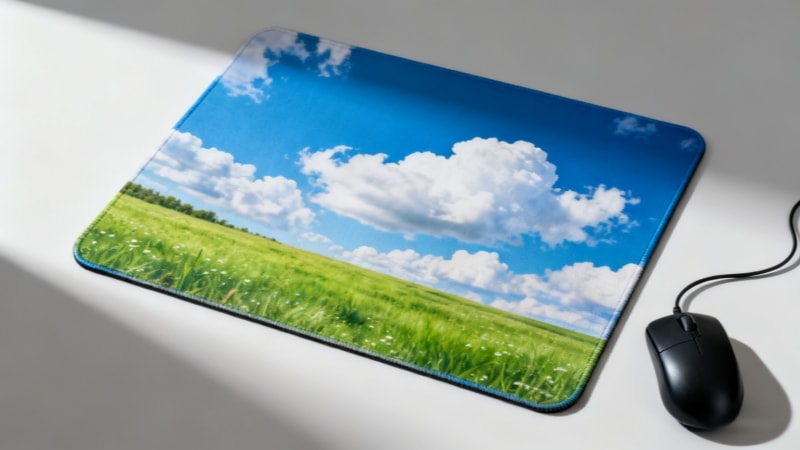
Mouse pad sublimation is a heat transfer process. Under high heat and pressure, sublimation ink turns into gas and bonds with a polyester-coated surface.
Key points:
Only sublimation mouse pads work
Regular mouse pads cannot absorb sublimation ink
The rubber base must resist heat without damage
At fdmat.com, our sublimation mouse pads are designed with stable polyester surfaces and heat-resistant rubber bases to ensure consistent printing results.
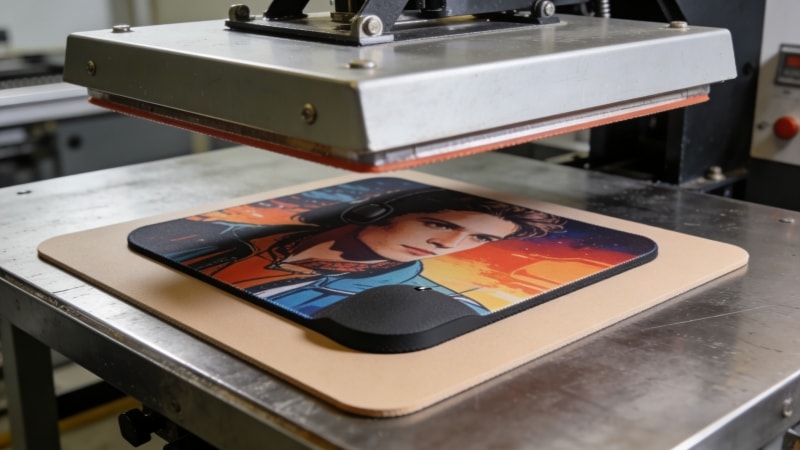
For most printable mouse mats, use the following settings:
Item | Recommended Setting |
|---|---|
Temperature | 190–200°C (374–392°F) |
Time | 45–60 seconds |
Pressure | Medium |
Practical tips
Start with 190°C and 50 seconds
Increase time slightly for thicker mouse pads
Avoid high pressure to protect the rubber base
These settings have been tested for optimal results and work well for most sublimation mouse pads used in bulk production. However, it is recommended to compare results with different mouse pad types to ensure the best outcome.
Yes. Material and thickness affect heat transfer. Using the wrong type of sublimation blank, such as a mouse pad that is not designed for sublimation or has an unsuitable surface, can lead to poor results. Choosing the wrong mouse pad can result in faded or inaccurate colors, especially if the background color does not match your design's needs. Always select a high-quality sublimation blank and ensure it is compatible with your design to achieve the best results.
Most common type
Easy to print
Stable color output
A bright white polyester surface produces more vibrant colors, especially important for detailed photo designs
Polyester surface with rubber backing
Rubber is sensitive to overheating
Important:Do not exceed 200°C, or the rubber may yellow or harden.
For best results, make sure to tape the edges of the sublimation print securely to the mouse pad before pressing. This prevents any movement and ensures an even, smooth transfer.
Thickness | Adjustment |
2mm | Standard time |
3mm | +5 seconds |
4mm | +5–10 seconds |
Thicker pads need more time so heat reaches the surface evenly.
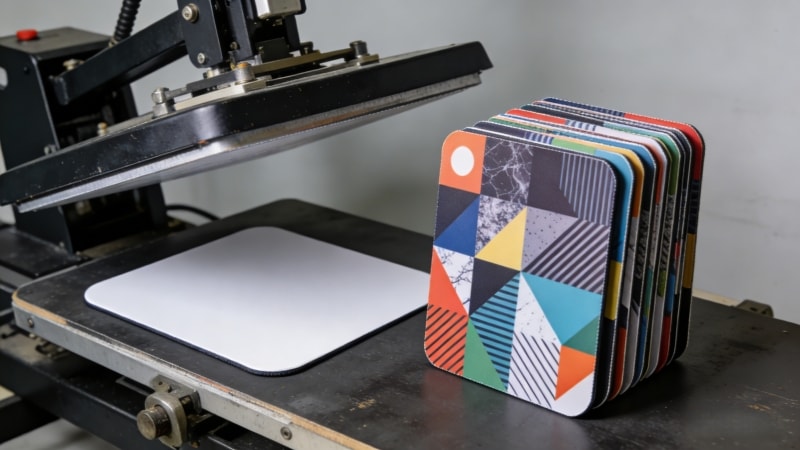
Set the correct temperature
Make sure the platen is clean and protected before heating to prevent sublimation ink from transferring to the surface.
Wait until the press is fully heated, and watch the press as it heats up to ensure it reaches the correct temperature.
Use a lint roll to remove lint, dust, and debris from the mouse pad blank before pressing. This ensures a clean surface for optimal print quality.
Place butcher paper under and over the mouse pad to protect your press and prevent ink transfer.
Keep the surface clean and dry
Place protective paper under the pad
Place the full sublimation sheet with the ink side facing down on the mouse pad.
Align the image carefully to ensure a high-quality, vibrant result.
Use heat resistant tape to secure the sheet and prevent any shifting during pressing, helping the print stick to the mouse pad.
If necessary, pin the mouse pad in place to avoid movement and ensure an even transfer.
Apply medium pressure
Press for the correct time, making sure to monitor for any issues happening during pressing, such as steam or the project shifting.
The actual sublimating occurs during this step as the ink transfers to the mouse pad.
Keep the press closed until finished
Peel paper hot or warm
Let the mouse pad cool flat. Once cooled, place the finished mouse pad on your desk for use or display.
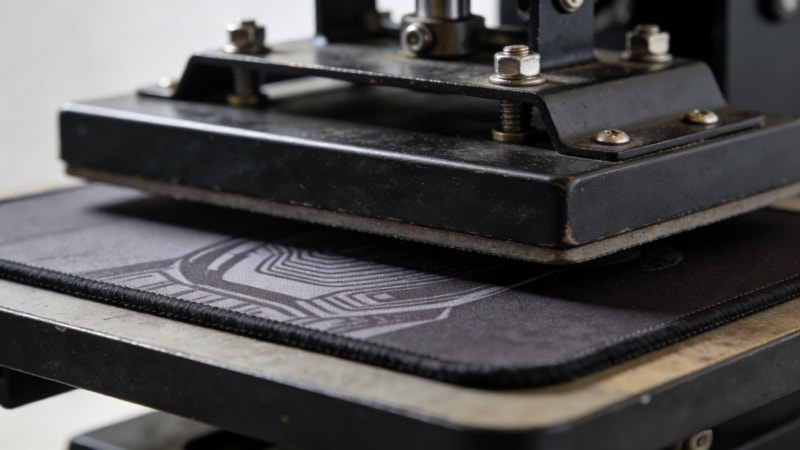
Cause: Temperature too low; Press time too short
Fix: Increase time by 5 seconds; Check ink and paper quality
Cause: Temperature too high; Press time too long
Fix: Lower temperature; Reduce pressing time
Cause: Paper movement; Uneven pressure
Fix: Secure the paper; Check pressure balance
Good sublimation mouse pads should have:
High-quality polyester coating
Heat-resistant rubber base
Flat surface after pressing
Consistent thickness
Suitable for creating custom mouse pads with personalized designs
At fdmat.com, we manufacture sublimation mouse pads and printable mouse mats with controlled coating quality, making them suitable for print shops, promotional gifts, and bulk orders.
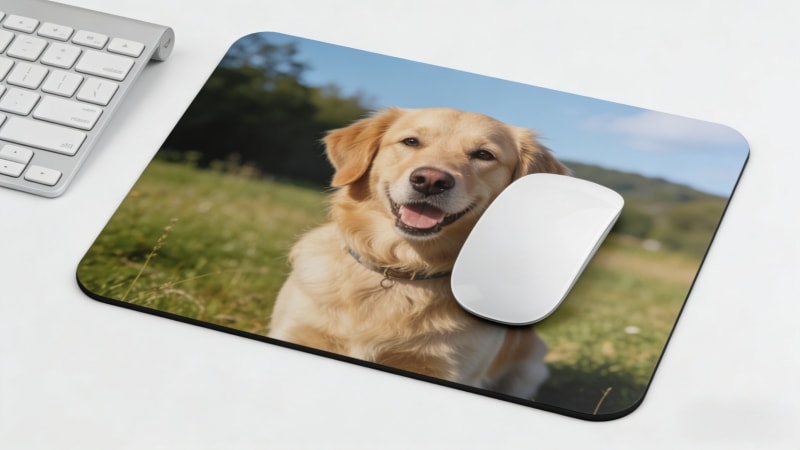
No. Regular mouse pads:
Cannot absorb sublimation ink
Produce faded or uneven images
Are not heat resistant
Only sublimation-ready mouse pads can be printed successfully.
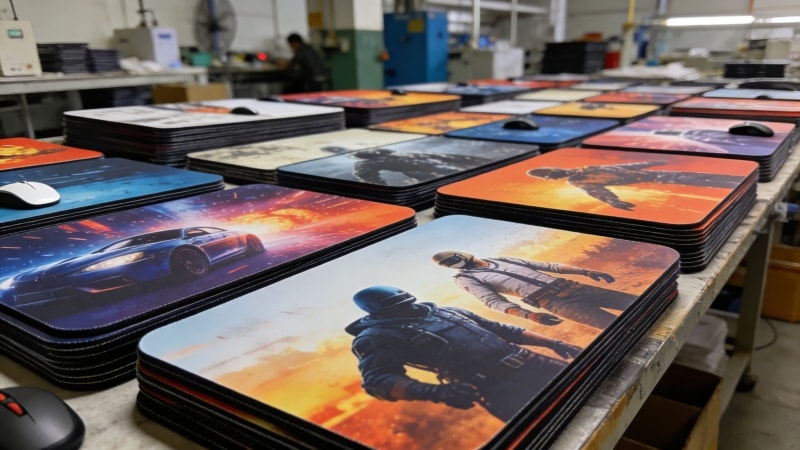
For businesses and factories, consistency is critical. Wholesale sublimation mouse pads should offer:
Stable color performance
Custom sizes and thicknesses
Reliable surface coating for mass production
Businesses can purchase mouse pads in bulk at competitive price points, and bulk orders may qualify for free shipping or free returns. The company will also accept returns or exchanges for defective products, ensuring a smooth purchasing experience.
This is why many customers choose factory-made sublimation mouse pads from fdmat.com for long-term and bulk printing projects.
To achieve good sublimation results:
Use 190–200°C
Press for 45–60 seconds
Choose sublimation-ready mouse pads
Always test before mass production
Correct time and temperature make a big difference.
If you are looking for reliable sublimation mouse pads, printable mouse mats, or bulk supply, visit www.fdmat.com to explore our products or contact us for samples and wholesale solutions.


